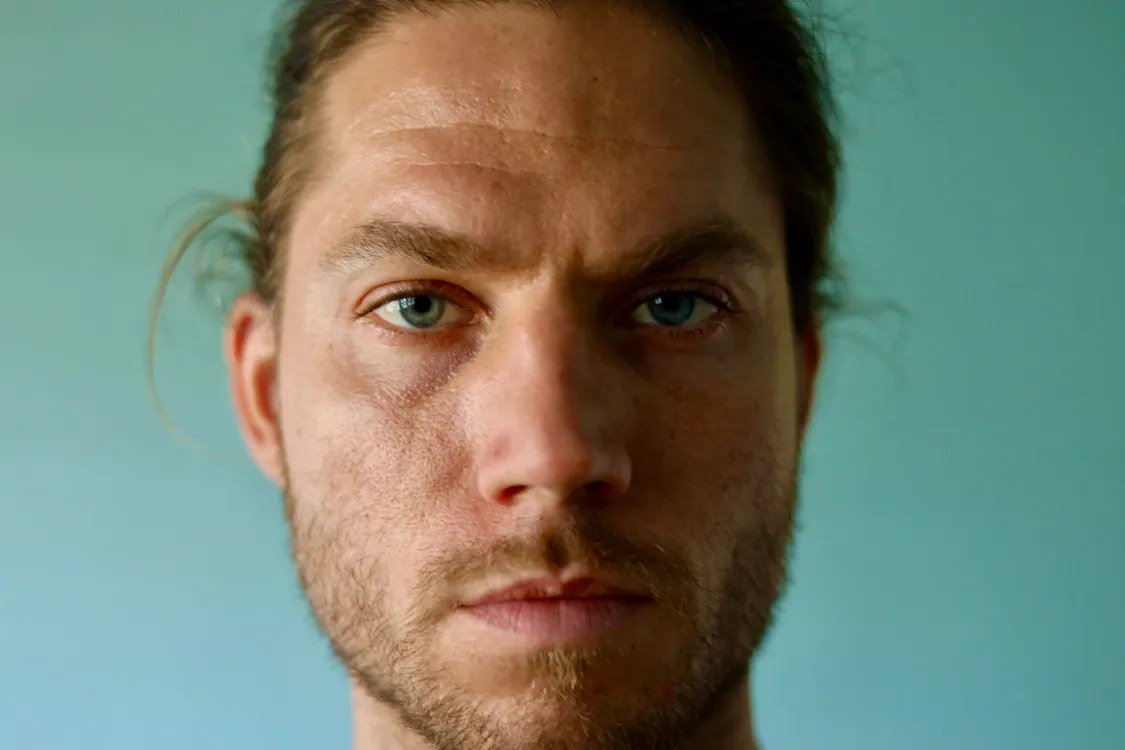
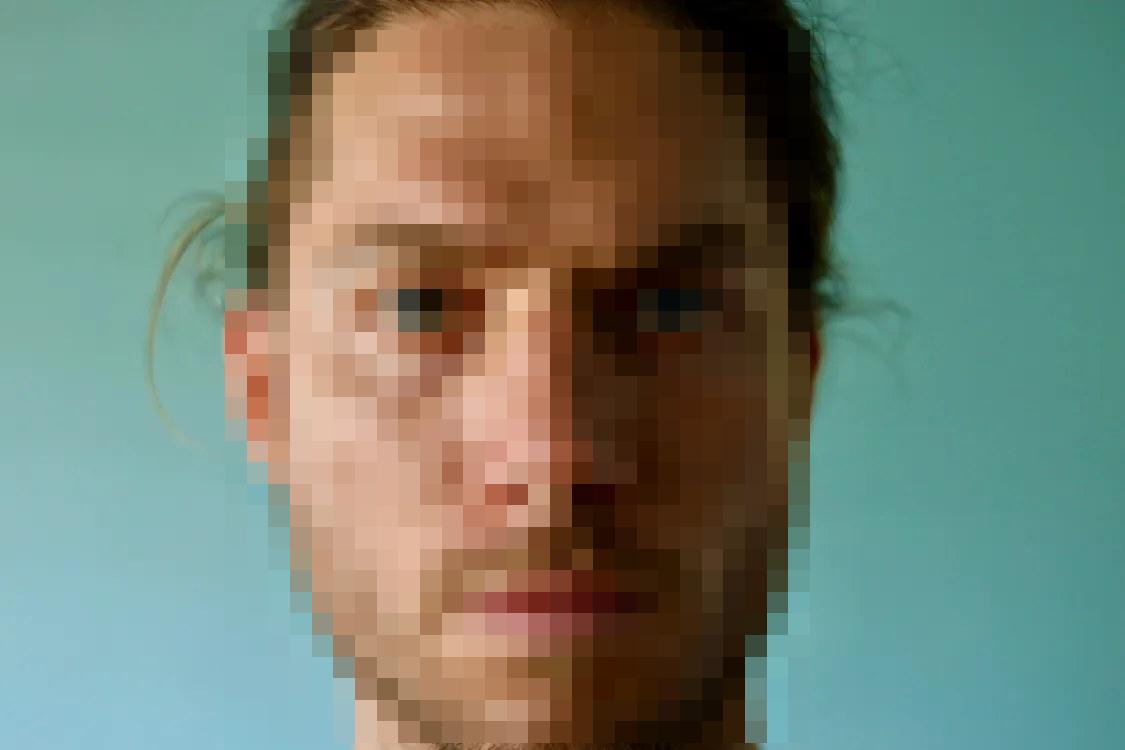
Photo 1 - A person's face
Pixelate: just the face itself - the hair, ears, and background stay exactly as they are.
Blur, pixelate, or cover private details in screenshots and images in seconds.
See it in action
Drag the slider
Email, phone number and order number covered. All names are fictional.
Drag & drop an image here
or paste from your clipboard (Ctrl/Cmd + V) anywhere on this page
PNG, JPG, or WebP · max 20 MB · max 8000 × 8000 px · 40 megapixels · no account needed
Real photos and documents, each shown as actual images: Before is the original, After is the same image with the effect really applied. Open one and try it yourself.
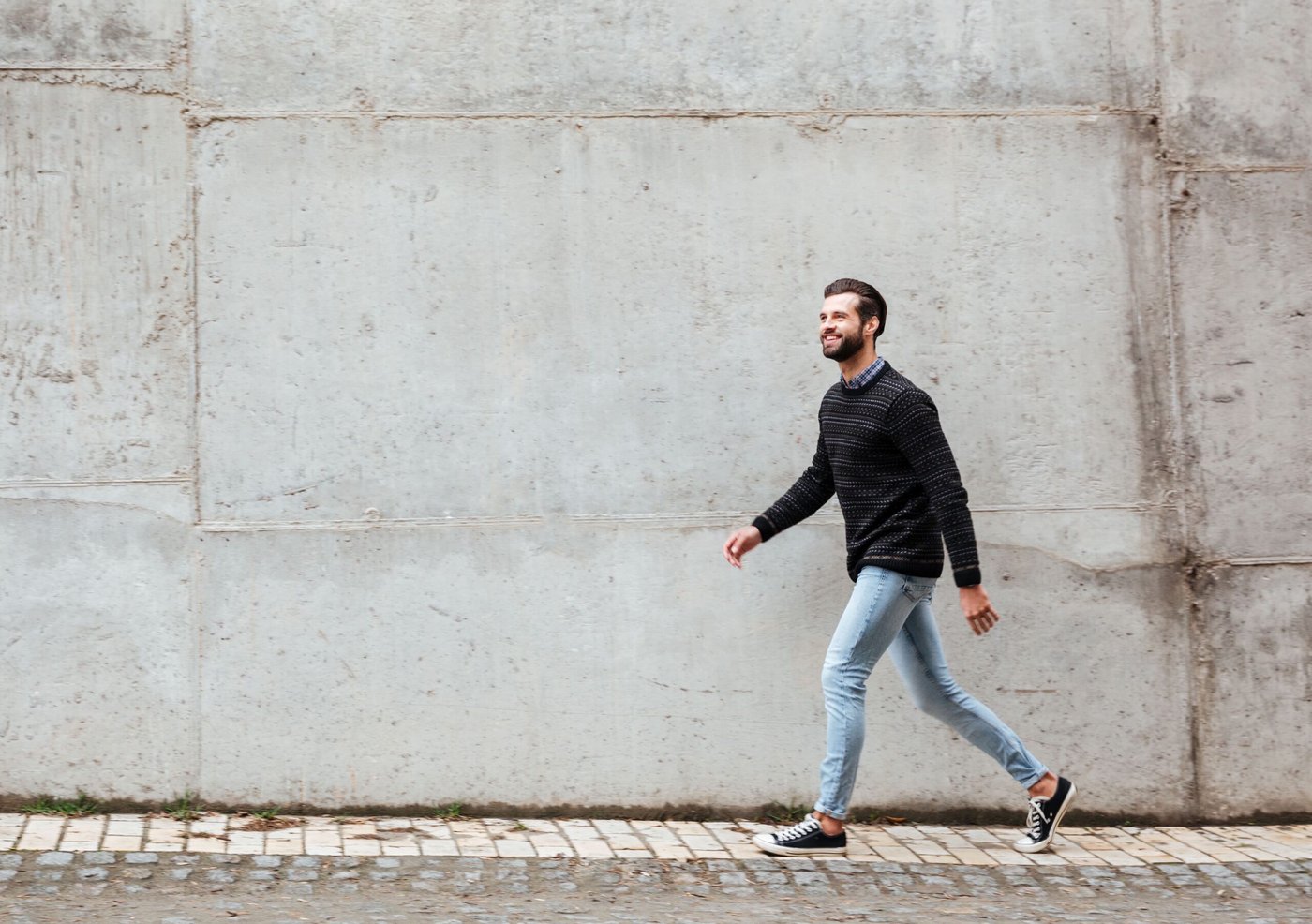
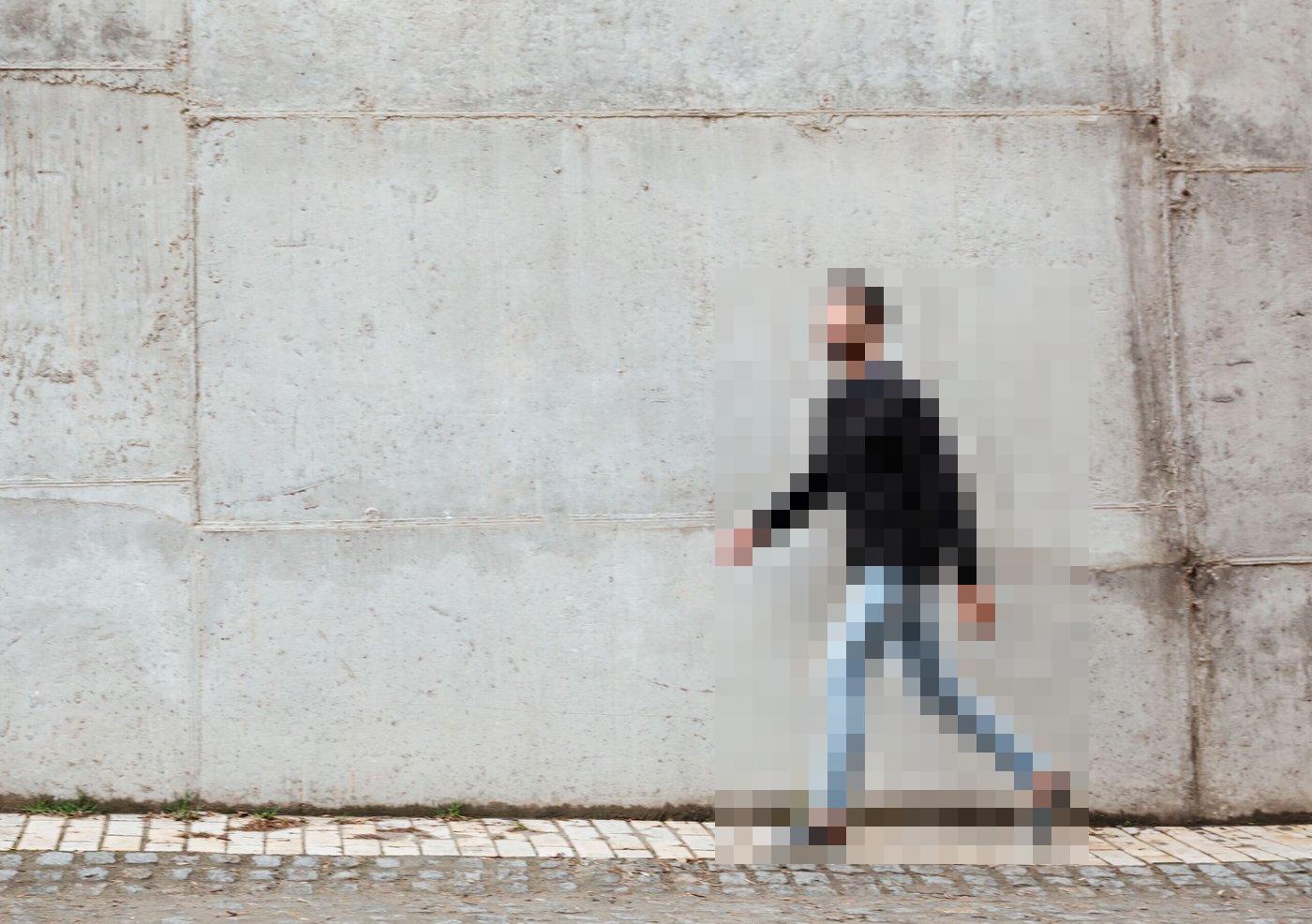
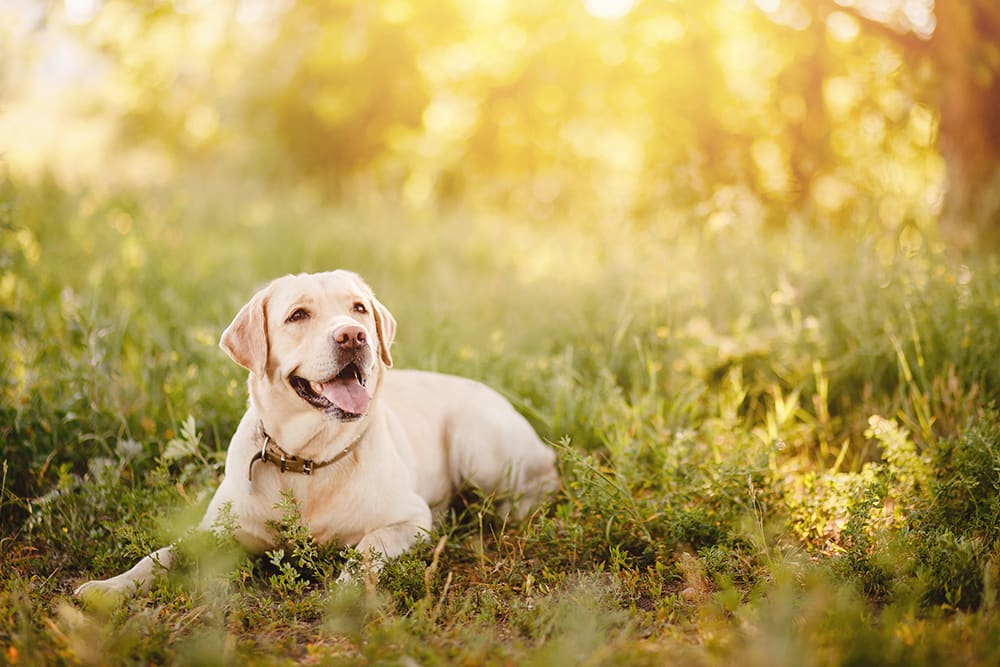
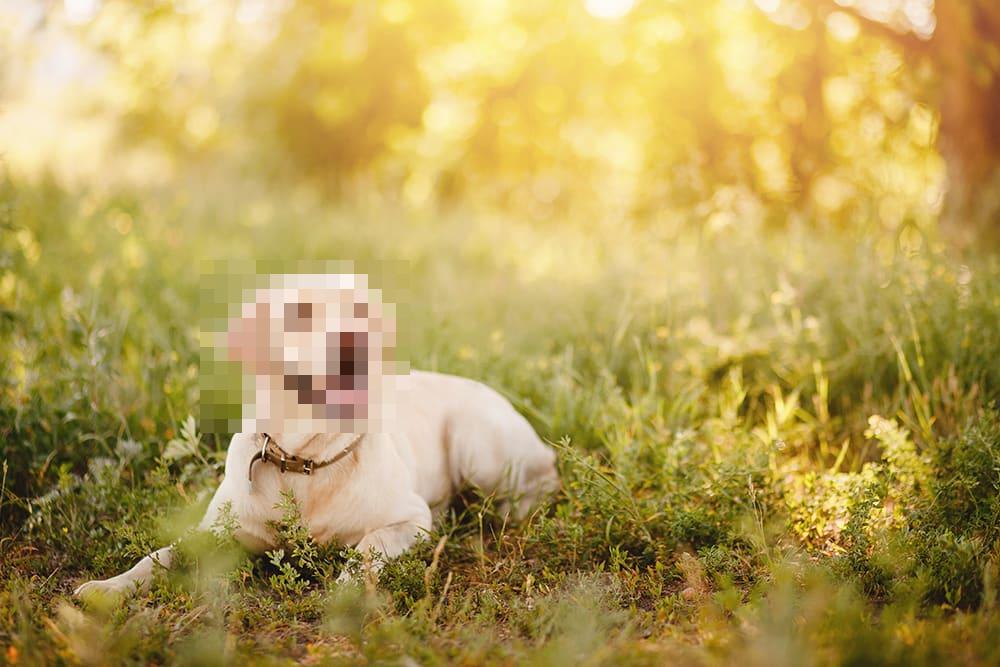
A face close-up, a full person, and an animal. Only the subject itself is pixelated in each “After” image - everything else in the photo stays visible and unchanged, and every photo is shown in full, never cropped.
Pixelate: just the face itself - the hair, ears, and background stay exactly as they are.
Pixelate: the whole figure, head to toe, so the person cannot be recognised.
Pixelate: only the dog's head - its body and the sunny field around it stay exactly as they are.
A chat, an invoice, and an email thread, all with made-up names and numbers, with solid covers over the private details.
Hide: the customer's email, phone number, and order number.
Preparing the before / after images…
Hide: the billing email, account number, and total due.
Preparing the before / after images…
Hide: both email addresses and the one-time sign-in code.
Preparing the before / after images…
Prefer the numbers dashboard? - revenue figures, a fictional email, phone, and API key to cover.
To hide sensitive information in a screenshot, open BlurTool, drop in the image, draw a box over each private detail, choose Cover, Blur or Pixelate, then download. Everything runs in your browser, so the image is never uploaded. For passwords, API keys and account numbers, use the solid Cover effect at 100% opacity, because blur and pixelation can sometimes be reversed.
Drop, paste (Ctrl/Cmd+V) or choose a PNG, JPG or WebP file. It opens locally in your browser.
Drag a box over each email, name, number, key or face. Move and resize boxes until they fully cover the content.
Cover (solid block) for secrets, Blur for soft background details, Pixelate for faces and figures. Keep opacity at 100% to fully hide.
Hold to compare with the original, then download a flattened PNG or JPG at full resolution.
| Effect | What it does | Best for | Safe for secrets? |
|---|---|---|---|
| Cover | Replaces the area with a solid opaque block | Passwords, API keys, card and account numbers, emails | Yes, at 100% opacity |
| Pixelate | Replaces the area with large single-color blocks | Faces, people, license plates in photos | Not for short text; use large blocks |
| Blur | Smooths the area with a Gaussian blur | Backgrounds and non-critical details | No, light blur can be reversed |
Yes. The manual editor (cover, blur, pixelate, full-resolution export) is free with no account. Pro ($9/month) adds automatic detection of emails and phone numbers, batch processing and saved presets, and every new account gets a 30-day Pro trial with no credit card.
No. BlurTool edits and exports images entirely in your browser. The server only keeps anonymous counters such as how many regions an export had, never image content or file names.
Use the solid Cover effect at 100% opacity. Blur and pixelation reduce detail but can sometimes be partially reversed, especially on short strings like codes or card numbers.
No. The export is a single flattened image re-encoded from the edited pixels, so there is no hidden layer and no original metadata to recover.
More answers on the Help and FAQ page.
The manual editor is free forever. Advanced automation is coming with Pro.
Draw, move, and resize boxes over anything private. Zoom, pan, undo/redo, and hold-to-compare included.
Three effects per region, with strength and an opacity slider - 100%, 75%, 50%, or 25% - baked into the export.
Editing and export run locally in your browser. No image upload, no original layers or metadata in downloads.
Finds emails, phone numbers and your own watch-words on your device, then covers the ones you approve.
Included in the 30-day free trial.
Redact many screenshots at once with the same settings, review each one, and export the set as a ZIP.
Included in the 30-day free trial.
Save your effect, opacity, color, and export settings once - then reuse them on every new image.
Included in the 30-day free trial.
Start free with the full manual editor - no account, no card. Pro adds auto detection, batch processing and saved presets. Every new account gets 30 days of Pro free, with no credit card.
$0
Free · manual editor
available now
$9/mo
Pro · 30-day free trial
no credit card
Revenue dashboards, sale threads and buyer chats, support tickets, invoices, and email threads all hit the same problem: one visible email, API key, or phone number can undo the whole post. The default here is a solid cover - the only effect that guarantees nothing shows through - with blur and pixelate available for softer details. New to it? Open one of the photo or document examples above and practise first.
Open the free editor, drop in an image, and download a clean copy at full resolution - no account, no upload, no watermark.